Zte Zxv10 B866v2 Unlock High Quality Updated Link
The ZTE ZXV10 B866V2 is a 4K UHD set-top box based on the Android TV platform, designed to support high-quality ultra-high-definition stream decoding and output. Unlocking this device typically refers to bypassing carrier-imposed restrictions to install third-party applications, custom launchers, or firmware. Device Specifications & Capabilities Resolution: Supports 4K Ultra High Definition (UHD). Platform: Android TV with support for Google Play Store.
Security: Integrated with Playready and Widevine DRM for stable streaming services.
Usage: Often provided by internet service providers (ISPs) as a managed streaming device. Methods for Unlocking & Bypassing Restrictions
Because these devices are often locked by specific carriers, standard "unlocking" methods may vary:
Bypassing Carrier Boot-Loops: Some users report that after a factory reset, the device can be briefly accessed during a "one-minute window" before carrier locks engage. During this time, using voice commands to open the Play Store and downloading a button mapper app can help assign keys to access hidden system settings.
Developer Options: Accessing Developer Options usually requires tapping the "Build Number" multiple times under Settings > About. However, some carrier-locked versions require a specific password from the ISP to enable these options.
Bootloader Unlocking: This allows for the installation of custom ROMs or rooting. Standard Android commands include fastboot oem unlock or fastboot flashing unlock, but these require the device to be in Fastboot Mode and may not be supported by all firmware versions. Maintenance & Recovery Procedures
Unlocking the ZTE ZXV10 B866V2 will transform your operator-locked Android TV box into a fully featured, unrestricted streaming powerhouse. This guide covers how to bypass provider restrictions, flash custom ROMs, and install standard Google Play applications. 🛠️ Prerequisites Before You Begin
Modifying your device requires specific hardware tools to properly interface with the circuit board.
Male-to-Male USB Cable: Used to connect the TV box directly to your computer.
Soldering Iron & Paste: Required for advanced methods that need direct board connections. A PC or Laptop: Needed to run the flashing software. Correct Firmware Files:
Download the specific ROM and board schematics tailored for the 🚀 The Step-by-Step Unlock Process 1. Booting into Flashing Mode
To get the device recognized by your computer, you must trigger the physical recovery mechanism on the board. Disconnect the power cable from the ZTE box.
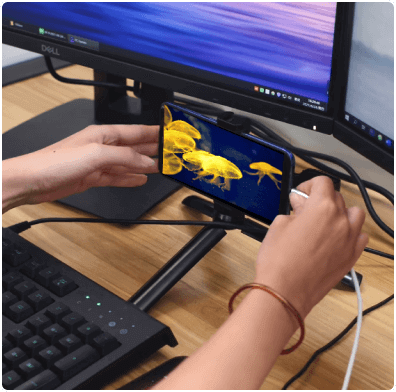
Connect your Male-to-Male USB cable between the PC and the TV box.
Locate and hold down the physical reset button on the device.
Keep holding the button until your PC detects the chipset connection. 2. Flashing the Custom ROM
Replacing the stock operating system is the primary method to remove operator restrictions.
Use a compatible desktop flashing tool to push the downloaded custom Android TV ROM to the box.
Do not disconnect the USB cable or power off your computer during this transfer to prevent bricking the hardware. 3. Activating Developer Options Zte Zxv10 B866v2 Unlock High Quality
Once the custom ROM is active, you must enable developer privileges to sideload software. Navigate to the Settings menu on your Android TV interface. Scroll to Device Preferences and click on About.
Tap on the Build Number repeatedly until a prompt states that "Developer Mode is Enabled". 4. Sideloading Unrestricted Apps
With the system unlocked, you are no longer forced to use the default provider launcher.
Use a USB drive or the built-in browser to grab tools like Aptoide TV or file downloaders.
Log in with a standard Gmail account to gain access to the official Google Play Store.
Download unrestricted applications for media playback and streaming.
⚠️ Important Disclaimer: Unlocking or flashing third-party firmware voids manufacturer warranties and can permanently break your device if handled improperly. Always ensure you are using the precise software files mapped to your specific hardware revision.
Since "unlock" can mean removing ISP restrictions, enabling hidden features, or gaining root access, this guide focuses on high-quality, actionable steps for advanced users.
Troubleshooting
- Incorrect code attempts: carriers usually limit attempts; do not exceed allowed tries.
- No IMEI/unknown status: restore factory firmware or contact carrier.
- Device bricked after flashing: attempt recovery via TFTP or serial bootloader; as a last resort seek professional repair.
1. Identify Your Exact Device Variant
The ZXV10 B866v2 comes in two main forms:
| Variant | Typical Use | Key Features |
|---------|-------------|---------------|
| IPTV Box | Android STB for carrier IPTV | HDMI, AV, USB, Ethernet, Wi-Fi |
| ONT/ONU | Fiber modem/router | GPON port, LAN ports, voice (FXS) |
"High Quality" refers to:
- For IPTV box: Unlocking 4K output, 60 fps, HDR, or installing Kodi/Smart YouTube for better streaming.
- For ONT: Unlocking bridge mode, removing QoS limits, or optimizing SQM for low-latency gaming.
⚠️ Always check firmware version – some are locked by ISPs (e.g., China Telecom, Movistar, Etisalat).
5. High-Quality Unlock: Telnet & Root Access (Advanced)
To fully unlock hidden parameters (like CPU affinity or thermal tweaks):
- Enable Telnet: Browse to
http://192.168.1.1/cgi-bin/telnet_enable.cgi.
- Connect:
telnet 192.168.1.1 (Login: root / Pass: Zte521 or admin).
- Root Commands:
# Backup config
cp /userconfig/cfg/db_user_cfg.xml /tmp/
# Show hidden Wi-Fi channels (DFS)
iw list
# Check temperature
cat /proc/thermal/thermal_zone0/temp
1. High-Quality Pre-Requisites
- Ethernet Cable (Do not do this over Wi-Fi).
- Factory Reset Pin (Paperclip).
- ISP PPPoE credentials (Username/Password – call your ISP if you don’t have them).
3. Methods to Unlock High Quality (IPTV Box Focus)
5. Risk Assessment
| Risk Level | Potential Issue | Consequence |
| :--- | :--- | :--- |
| High | Bricking | Interrupting a firmware flash renders the device unusable. Requires hardware programming (TTL/USB-TTL) to recover. |
| Medium | Loss of Services | Unlocking generic firmware often breaks ISP-specific features like IPTV (Multicast VLAN) or VoIP telephony. |
| Low | Web UI Bugs | Generic firmware may not perfectly support the specific hardware revision of the B866V2, leading to unresponsive menus. |
A. Unlock Bridge Mode (For High-End Routers)
Go to: Network > Internet Connection > WAN.
- Delete the
TR069 connection (ISP remote control).
- Edit
INTERNET connection.
- Change Mode from
Route to Bridge.
- VLAN ID: Leave as ISP default (e.g., 101, 40, 10).
- Result: Your external router now gets the public IP. Zero NAT lag.
10. Call to Action (If for a Blog/Video)
“Have you successfully unlocked your B866V2? Share your before/after screenshots in the comments. Subscribe for more STB unlock guides.”
Unlock Your ZTE ZXV10 B866V2: A Step-by-Step Guide for High-Quality Performance
The ZTE ZXV10 B866V2 is a powerful Android TV box, but its potential is often limited by factory-installed restrictions and pre-loaded apps. If you're looking to unlock high-quality performance, smoother streaming, and more freedom with your device, you've come to the right place. Why Unlock Your ZTE ZXV10 B866V2? The ZTE ZXV10 B866V2 is a 4K UHD
Unlocking your device isn't just about gaining administrative access; it's about optimizing your viewing experience. By following this guide, you can:
Remove Bloatware: Get rid of unnecessary apps that slow down your system and consume storage.
Install Custom Launchers: Personalize your interface for a more intuitive and faster navigation.
Enable High-Quality Streaming: Optimize settings for better video output and smoother playback.
Access More Apps: Install applications that are not available on the official store. Pre-Requisites Before You Begin
Before we dive into the unlocking process, ensure you have the following:
ZTE ZXV10 B866V2 Device: Make sure it’s connected to a stable power source and a display.
USB Drive (FAT32 formatted): For transferring necessary files.
A Computer: To download the required firmware or unlocking tools.
A USB Male-to-Male Cable: This is crucial for connecting your TV box directly to your computer.
Basic Technical Knowledge: Unlocking involves steps like entering Recovery Mode and using ADB (Android Debug Bridge) commands. Step-by-Step Guide to Unlocking 1. Enable Developer Options
To start, you need to allow your device to communicate with external tools. Go to Settings > Device Preferences > About.
Scroll down to Build Number and click it seven times until you see a message saying "You are now a developer!" Go back to Device Preferences and select Developer Options. Enable USB Debugging. 2. Connect to Your PC
Connect your ZTE box to your computer using the USB Male-to-Male cable. Ensure your PC recognizes the device. You might need to install specific ZTE drivers if it's not automatically detected. 3. Use ADB Commands to Unlock
Open a command prompt (or terminal) on your PC and type the following command to ensure the device is connected: adb devices
If your device appears in the list, you’re ready to proceed. To enter the bootloader, use: adb reboot bootloader
Once the device is prepared, the focus shifts to optimizing the software environment for the best possible performance. 4. Managing System Resources
To maintain high-quality playback, it is essential to manage how the device uses its resources. Troubleshooting
Disable Background Apps: Navigate to Settings > Apps > See all apps. Select apps that are not in use and choose Force stop or Disable to free up system memory.
Clear System Cache: Regularly clearing the cache helps prevent stuttering during high-bitrate streaming. This can be found under Storage settings. Maximizing Video and Audio Quality
With the system streamlined, you can now fine-tune the output settings for a premium viewing experience:
Optimize Display Resolution: Go to Settings > Device Preferences > Display. Ensure the resolution is set to the highest supported by your television, such as 4K at 60Hz, to ensure crisp visuals.
Configure HDR Settings: If the connected display supports High Dynamic Range (HDR), ensure this is enabled in the display settings to achieve better contrast and more vibrant colors.
Audio Pass-through: For those using an external soundbar or home theater system, go to Audio settings and enable pass-through mode to allow the external hardware to decode high-quality audio formats. Conclusion
Optimizing the ZTE ZXV10 B866V2 is an effective way to transform a standard TV box into a more responsive and high-performance media center. By removing digital clutter and adjusting output settings, the device can provide a much smoother and more enjoyable entertainment experience.
Note: Always ensure that any software updates are sourced directly from the official manufacturer to maintain the security and stability of the hardware.
Unlocking the ZTE ZXV10 B866V2 transforms it from a restricted, operator-locked device into a versatile 4K Android TV powerhouse. This set-top box (STB) is prized for its high-performance hardware, supporting fluent 4K UHD streaming and a responsive user experience. Performance & Hardware
Powerful Processing: Equipped with a quad-core ARM Cortex-A35 CPU and ARM G31 MP2 GPU, the B866V2 delivers smooth UI navigation and handles demanding 3D games and apps with ease.
Stunning Visuals: It supports advanced video decoding, including AV1, HEVC, and VP9, allowing for 4K Ultra HD playback at 60fps. High dynamic range support (HDR10/10+) ensures vibrant colors and deep contrast.
Reliable Connectivity: Includes dual-band Wi-Fi 5 (802.11ac) and Bluetooth 5.0 for stable wireless connections to remotes, game controllers, and sound systems. The Unlock Experience
Unlocking this device—often via firmware flashes or "bypassing" the operator boot screen—is a game-changer for users stuck with restricted cable-company software.
Full App Access: Post-unlock, you can access the standard Google Play Store, YouTube, and popular streaming services like Netflix, Prime Video, and Disney+.
Freedom of Choice: Users can sideload third-party apps through USB or alternative stores like Aptoide, effectively turning it into an open Android TV box.
Native Features: Restores access to built-in Chromecast for mobile casting and Google Assistant for voice-controlled navigation. Verdict: High Quality for Power Users
The ZTE ZXV10 B866V2 is a "high-quality" choice because it combines Widevine L1 DRM (essential for high-res official streaming) with capable hardware. While the unlocking process requires some technical effort, the result is a premium streaming device that rivals more expensive retail alternatives. 4K High-End Android TV STB — ZXV10 B866V2-H | ZTE